- TL;DR
- Why Your Mic Picks Up So Much Background Noise
- Traditional Ways to Reduce Microphone Background Noise
- The AI Noise Reduction Revolution: Why 2026 Belongs to Machine Learning
- Microphone Noise Removal AI Tools Compared
- Step-by-Step: How to Reduce Microphone Background Noise With AudioCleaner AI
- Pro Tips to Reduce Microphone Background Noise Before It Happens
- Conclusion
- FAQ
- How do I remove background noise from my microphone without installing software?
- How does AI noise reduction compare to Audacity's traditional noise removal?
- What's the difference between removing background noise and removing echo or reverb?
- Can the tool remove breath sounds and mouth clicks from my recordings?
- What types of background noise can this noise remover remove?
- Do I need special hardware to remove background noise from my microphone?
- How long does background noise removal take?
TL;DR
- When removing background noise from microphone, traditional manual methods (Audacity noise profiling, noise gates, EQ filtering) still work but require technical know-how and far more time.
- AI-powered noise reduction has leapfrogged old-school DSP — it doesn’t just filter frequencies, it intelligently separates human voice from noise, preserving natural vocal quality without the “robotic” side effects. AudioCleaner AI is the fastest way to remove background noise from microphone recordings — no sign-up, no software install, just upload and get clean audio in seconds.
Why Your Mic Picks Up So Much Background Noise
Every microphone, from a laptop’s built-in array to a professional condenser, captures more than just your voice. Background noise — the hum of an air conditioner, keyboard clicks, street traffic bleeding through a window, or even the subtle electrical hiss of the mic’s own circuitry — finds its way into every recording. Understanding why this happens is the first step to learning how to remove background noise from mic recordings effectively.
The Signal-to-Noise Problem
At its core, microphone background noise is a signal-to-noise ratio (SNR) problem. Your voice is the “signal”; everything else is “noise.” The closer your noise floor is to your signal level, the harder it becomes to separate the two. Built-in microphones on laptops and webcams typically have noise floors around -65 dB to -50 dB — meaning background hiss and hum are just 40-50 dB below your speaking voice. Professional microphones push that floor below -120 dB, giving you vastly more headroom.
But even a high-end microphone won’t save you if your recording environment is noisy. Room acoustics alone can add as much as 40 dB of unwanted ambient noise to a recording. That’s where reduction techniques and AI-powered cleanup tools come in.
What Types of Noise Are We Dealing With?
Not all background noise behaves the same way, and knowing the difference determines the best removal approach:
- Stationary noise is consistent and predictable — air conditioning hum, fan noise, electrical mains hum (50/60 Hz), or microphone self-noise. Traditional DSP (Digital Signal Processing) handles these well because the noise profile doesn’t change.
- Non-stationary noise is unpredictable and dynamic — keyboard clicks, door slams, sirens, a dog barking, or background chatter. This is where traditional filters fail and AI-based solutions become essential. Classic DSP can’t adapt fast enough to sudden noise bursts without damaging the voice signal.
- Impulse noise is short and sharp — mouth clicks, lip smacks, plosives (“p” and “b” pops), and breath sounds. These require specialized detection and removal tools rather than broadband noise reduction.
- Room reverb and echo aren’t strictly “noise,” but they degrade clarity just as badly. Hard surfaces reflect sound waves, creating a hollow, distant quality that makes speech harder to understand.
Traditional Ways to Reduce Microphone Background Noise
Before AI changed the game, content creators relied on a combination of hardware fixes, careful recording discipline, and manual post-production. These methods still have their place — especially if you’re recording live or want to minimize cleanup work later.
Recording Environment: The Free Fix That Makes the Biggest Difference
The most effective way to reduce background noise on mic costs nothing. Close your windows. Turn off fans, air conditioners, and appliances. Record in a carpeted room with soft furnishings — curtains, cushions, and bookshelves all absorb sound reflections and cut down reverb.
Microphone Technique: Get Close, Stay Consistent
Close-miking is one of the most effective noise-reduction techniques available. Every additional 10 cm of distance between your mouth and the microphone noticeably increases background noise pickup. For most vocal recording, keep the mic 15–30 cm (6–12 inches) from your mouth. This proximity effect boosts your voice relative to ambient noise, dramatically improving the signal-to-noise ratio without any processing at all.
Hardware Solutions: What Actually Works
Cardioid and supercardioid microphones reject sound from the rear and sides, naturally reducing room reflections and ambient noise. Dynamic microphones, like the Shure SM7B or Electro-Voice RE20, are inherently less sensitive than condenser mics and pick up far less room noise — which is why they dominate podcasting and broadcast.
The AI Noise Reduction Revolution: Why 2026 Belongs to Machine Learning
A fundamental shift has occurred in how we remove background noise from microphone recordings. The difference between traditional DSP and modern AI noise reduction isn’t incremental — it’s architectural.
How Traditional Noise Reduction Works And Why It Falls Short
Conventional approaches — spectral subtraction, Wiener filtering, noise gates — all operate on the same principle: identify a frequency range associated with noise and subtract it from the overall signal. Think of it as a “rough pruning” — it can cut away obvious weeds but struggles to clear debris without damaging the plant itself (your voice).
Noise gates, a common entry-level solution, simply mute the microphone below a set threshold. They’re effective during silence but do nothing while you’re speaking — the gate opens and all noise rushes through alongside your voice. Worse, gates can clip the beginning of words or cut off quiet syllables entirely.
Traditional processing also tends to “injure” the harmonic structure of the human voice, producing the thin, muffled, or “underwater” sound that’s all too familiar to anyone who has pushed noise reduction too far.
How AI Noise Cancellation Works: Voice Separation Instead of Frequency Subtraction
AI noise cancellation represents a fundamentally different approach. Rather than applying filters to the entire signal, deep-learning models are trained on massive datasets of clean speech mixed with various noise types. They learn to recognize the unique “voiceprint” — the specific spectral and temporal patterns that distinguish human speech from everything else.
This is source separation, not subtraction. The AI identifies and isolates the voice component while suppressing everything that doesn’t match the learned speech pattern — including non-stationary noises that traditional DSP cannot handle. The performance gap is dramatic: while traditional ENC achieves roughly 15 dB of steady-state suppression, modern AI algorithms can deliver up to 40 dB of dynamic noise suppression. That -40 dB of reduction can virtually eliminate busy street noise, whereas -15 dB only dampens it, leaving distracting sounds still audible.
The result is audio that sounds clean and natural — not processed, not “robotic,” just clear.
Microphone Noise Removal AI Tools Compared
We tested AudioCleaner AI against four other noise reduction tools using the same challenging audio clip: a voice recording with steady fan hum, intermittent keyboard clicks, and mild room echo. Here’s how each tool performed.
| Feature | AudioCleaner | Krisp | Audacity | Adobe Podcast | RTX Voice |
| Technology | AI Deep Learning | AI Real-time | Noise Profile | AI Online | AI Real-time |
| Processing Speed | 5–10 sec | Real-time | 5–10 min | 30–60 sec | Real-time |
| Sign-up Required | No | Yes | No | Yes (Adobe ID) | No |
| Installation | No (Web) | Yes | Yes | No (Web) | Yes |
| Pre-Recorded Files | Yes | No | Yes | Yes | No |
| Specialized Tools | 5+ tools | No | Via plugins | No | No |
| Free Tier | Unlimited | 60 min/day | Unlimited | Limited | Free (RTX GPU) |
| Voice Naturalness | 9.2 / 10 | 8.5 / 10 | 6.5 / 10 | 9.0 / 10 | 8.5 / 10 |
| Best For | All-in-one cleanup | Live calls | Tech-savvy users | Quick polish | RTX gamers |
The Best All-Around AI Noise Remover for Microphone Audio
AudioCleaner AI is a free, web-based AI audio enhancer that removes background noise, echoes, and other imperfections with a single click. Unlike most competitors, it requires no sign-up, no software installation, and no credit card — you upload your file, the AI processes it in seconds, and you download clean audio immediately.
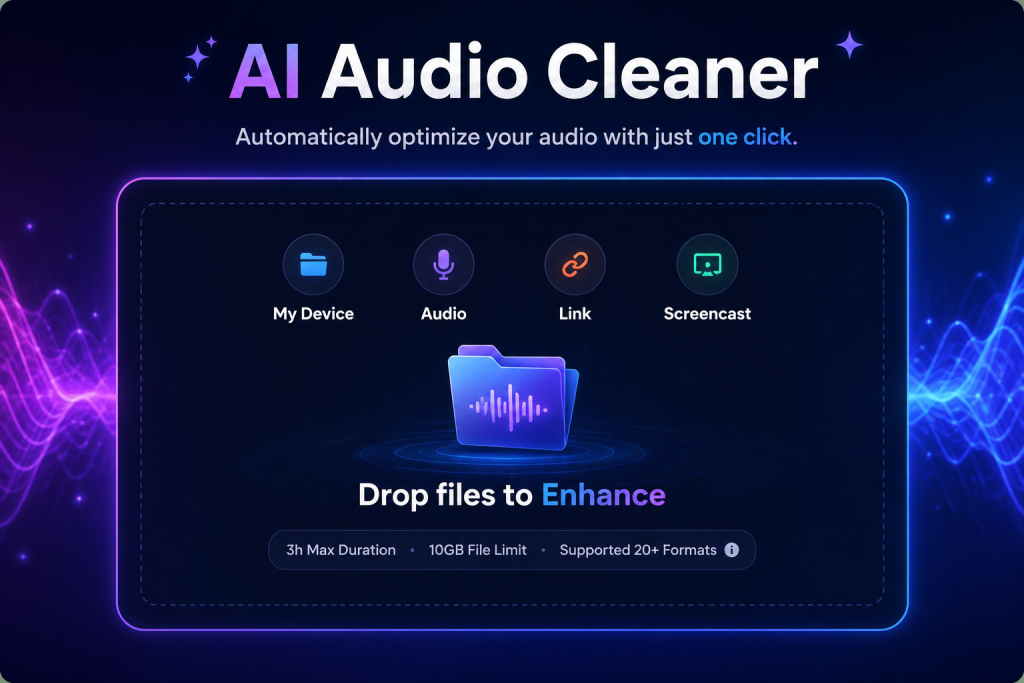
What sets it apart is the depth of its cleaning toolkit. Beyond general background noise removal, it offers specialized tools that competitors simply don’t provide:
- Breath Remover for cleaning up vocal recordings
- Mouth Sounds Remover that eliminates clicks and lip smacks
- Echo Remover for taming room reflections
- Reverb Remover for tightening up recordings made in untreated spaces.
This means you can solve multiple audio problems on one platform rather than juggling three or four different tools.
Krisp
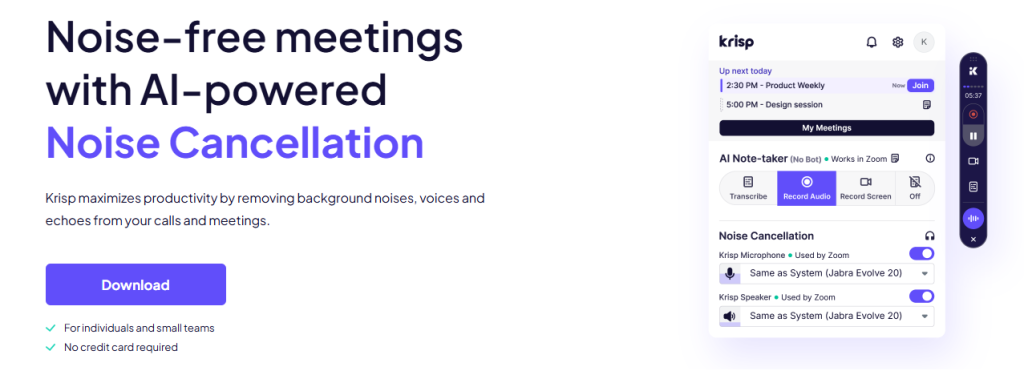
Krisp filters microphone and speaker audio in real time and works with most calling apps. The main limitation: it handles live streams only, so pre‑recorded files are out of scope. The free plan is capped at 60 minutes per day, which quickly becomes restrictive for regular use.
Audacity
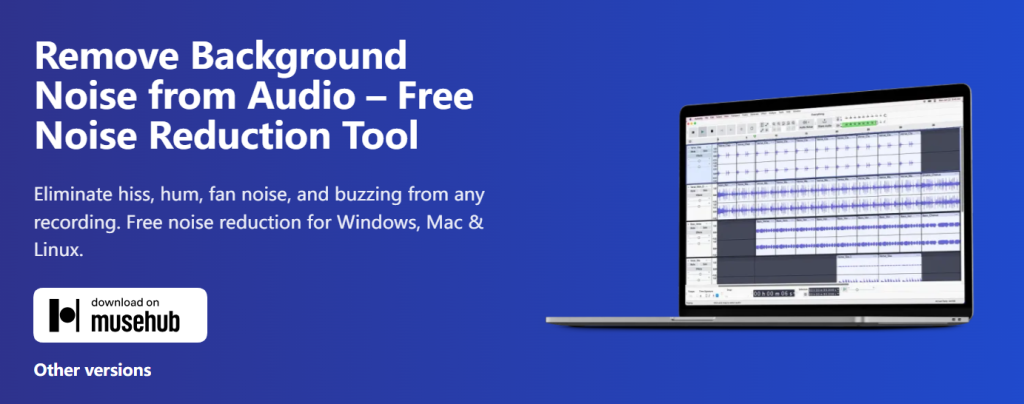
Audacity’s noise‑reduction workflow relies on manually selecting a noise profile and tuning parameters. While the OpenVINO AI plugin improves results, setting it up requires patience and technical knowledge. Overall, Audacity demands more time and effort to match what AI‑first tools deliver in seconds.
Adobe Podcast Enhance
Adobe Podcast Enhance applies AI to clean up speech recordings with minimal effort. The downside: it needs an Adobe account, the free daily quota is limited, and it only polishes overall voice quality. There are no specialized tools for removing breath sounds, mouth clicks, echo, or reverb in one place.

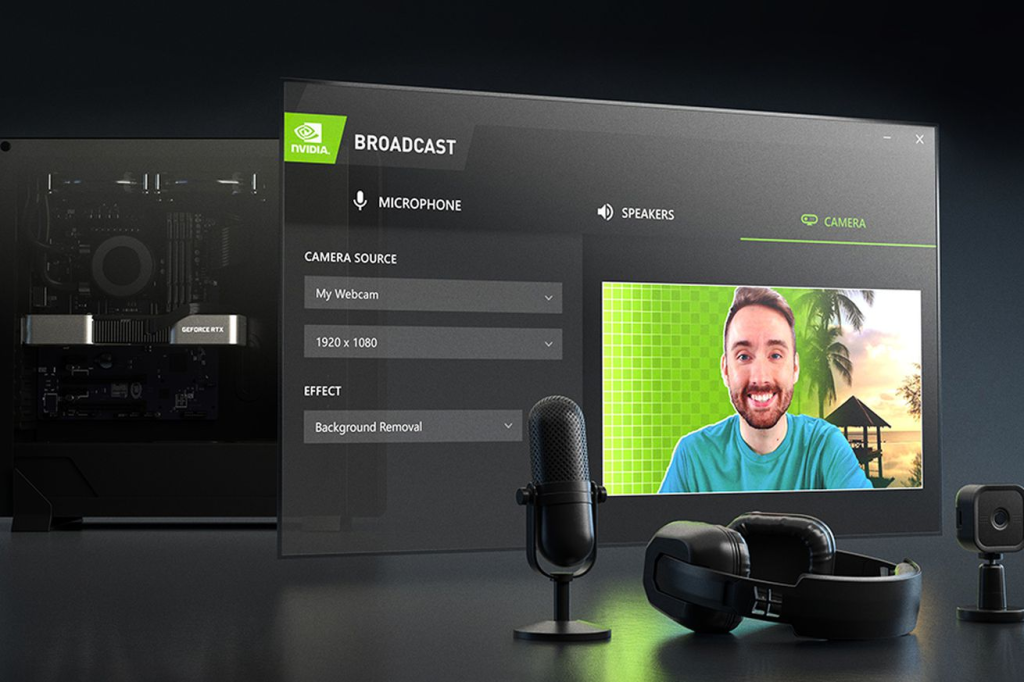
NVIDIA RTX Voice
RTX Voice uses GPU‑accelerated AI to filter background noise in real time and performs well for live streaming or gaming. However, it requires a supported NVIDIA RTX GPU, leaving users on integrated graphics or older hardware without access. It also cannot process pre‑recorded audio.
Step-by-Step: How to Reduce Microphone Background Noise With AudioCleaner AI
Here’s the complete workflow in three steps:
Step 1: Upload Your File
Go to AI audio enhancer. Drag and drop your file onto the upload area, or click to select it from your device. It supports MP3, WAV, AAC, M4A, MP4, MOV, and more, like
audio recording, link and screencast.
Step 2: Let the AI Process
Once uploaded, the AI automatically analyzes your file, identifies background noise patterns, and separates them from the speech signal. Processing typically completes in 5–10 seconds for most files.
Step 3: Fine-Tune With Specialized Tools If Needed
After general noise reduction, its integrated toolkit lets you address specific problems in one workflow:
- Breath sounds and plosives: Run the dedicated breath remover to clean up harsh inhales and “p” pops that survive general noise reduction.
- Mouth clicks and lip smacks: The mouth sounds remover targets the wet, clicking sounds that are notoriously difficult to edit out manually.
- Room echo and reverb: If your recording sounds hollow or distant, the echo remover tightens it up. For heavier room reverberation, the reverb remover provides more aggressive treatment.
Step 4: Download Your Clean Audio
Preview the processed audio. If you’re satisfied, download the high-quality, noise-free file to your device.
Pro Tips to Reduce Microphone Background Noise Before It Happens
AI cleanup is powerful, but the best noise is noise that never gets recorded. Combine these recording best practices with post-production AI processing for professional-grade results every time.
- Gain staging is everything. Set your microphone gain so your voice peaks between -12 dB and -6 dB, averaging around -8 dB RMS. Too high and you amplify every whisper of background noise; too low and you’ll need to boost levels in post, which brings the noise floor up with the signal.
- Use your operating system’s built-in noise suppression. Windows 11 includes native noise suppression under Settings → System → Sound → Microphone Properties → Enhancements. macOS offers “Use ambient noise reduction” under System Settings → Sound → Input. These are basic but better than nothing for live calls.
- Record a few seconds of “room tone” at the start of every session. This gives you a clean noise profile to work with whether you’re using AI tools or manual reduction later.
- Keep your audio drivers updated. Outdated or corrupted audio drivers can introduce crackling, static, or disabled noise cancellation features that undermine otherwise clean recordings.
Conclusion
Learning how to remove background noise from microphone recordings no longer requires an audio engineering degree. The old way still works if you have the time and patience. But AI-powered tools have changed the equation entirely.
It delivers professional-grade noise reduction in seconds, with no sign-up, no software installation, and no cost. Its integrated toolkit — covering everything from breath removal and mouth sound cleanup to echo and reverb treatment — means you solve all your audio problems on one platform. For podcasters, content creators, remote workers, and anyone who needs clean microphone audio without the hassle, AudioCleaner AI is the clear winner in 2026.
FAQ
How do I remove background noise from my microphone without installing software?
Use AudioCleaner AI’s web-based AI audio enhancer. It runs entirely in your browser — no download, no installation, no sign-up. Upload your audio or video file, and the AI removes background noise automatically in seconds.
How does AI noise reduction compare to Audacity’s traditional noise removal?
Audacity uses noise profile subtraction — you manually select a section of “noise only,” capture its profile, then subtract that profile from the entire track. It works for steady hums but struggles with dynamic noises like keyboard clicks. AI models like AudioCleaner AI’s use deep learning to separate voice from all noise types, achieving cleaner results with zero manual configuration and better voice naturalness.
What’s the difference between removing background noise and removing echo or reverb?
Noise removal targets unwanted sounds — fans, hums, traffic, keyboard clicks. Echo and reverb are acoustic reflections of your voice bouncing off hard surfaces. They require different processing approaches. AudioCleaner AI offers separate tools: the AI enhancer for general noise, plus dedicated echo remover and reverb remover for room reflection problems.
Can the tool remove breath sounds and mouth clicks from my recordings?
Yes. AudioCleaner AI includes specialized tools for these specific problems — a dedicated breath remover for cleaning up inhales and plosives, and a mouth sounds remover that eliminates clicks, lip smacks, and saliva noises.
What types of background noise can this noise remover remove?
AudioCleaner AI removes steady noises (fan hum, air conditioning, electrical buzz, microphone hiss), dynamic noises (keyboard clicks, background chatter, traffic), and acoustic issues (room echo, reverb). It’s effective on everything from podcast recordings and video voiceovers to meeting audio and music demos.
Do I need special hardware to remove background noise from my microphone?
No — unlike solutions such as NVIDIA RTX Voice that require specific GPUs, AudioCleaner AI runs entirely through your web browser. Any device with an internet connection — laptop, tablet, or phone — can process audio with professional-grade AI noise reduction.
How long does background noise removal take?
Most files process in 10-15 seconds on AudioCleaner AI. A 5-minute recording with moderate background noise is typically clean and ready to download in under 30 seconds.