
Quick Verdict
Use Microsoft Teams noise suppression when you need live background-noise control during a meeting. Use Voice isolation when the bigger problem is other voices leaking through your mic and your Teams setup supports a voice profile.
For an already recorded Teams meeting, neither setting is a repair tool. If the replay has fan noise, office chatter, echo, buzzing, or uneven speech after download, clean the exported file with Audio Cleaner before sharing it, editing it into training content, or sending it into a separate transcript workflow.
Best rule: fix the live call in Teams, fix the saved recording after the meeting.
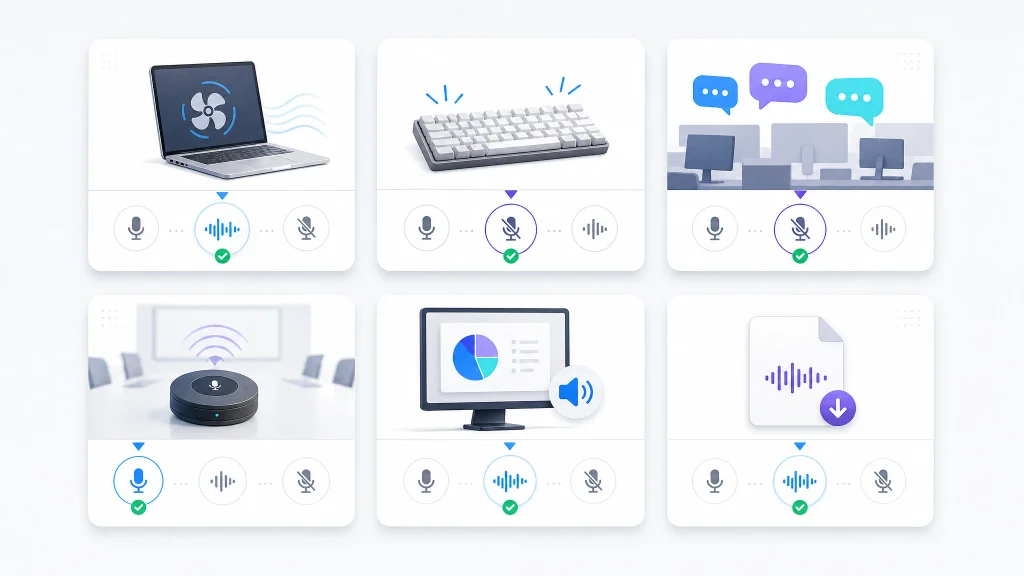
Teams Voice Isolation vs Noise Suppression: The Fast Decision Table
Before choosing a setting, separate two jobs: real-time meeting audio and post-meeting file repair. For the cleanup steps below, Audio Cleaner and AI Audio Cleaner refer to the same tool.
| Situation | Best Teams choice | Why it fits | After the Meeting |
|---|---|---|---|
| Laptop fan, air conditioner, paper noise, or light typing | Noise suppression / Background noise only | The problem is steady or short background noise around one speaker | Clean the recording only if the noise is still distracting |
| Coworkers, family, or another speaker near your mic | Voice isolation | Teams can use your voice profile to focus on your voice and reduce other voices | Review carefully because other voices may already be baked into the recording |
| Quiet room with a good microphone | Low or no suppression when quality matters | Heavy processing can make a clean mic sound less natural | Use light enhancement only if the voice still sounds thin |
| Music, demo audio, or shared computer sound | Avoid aggressive voice cleanup | Speech-focused processing can damage non-speech audio | Keep system audio separate when possible before cleaning |
| Two people intentionally sharing one microphone | Avoid Voice isolation | A profile-based mode may treat the second person as unwanted sound | Use manual editing or light cleanup instead of hard isolation |
| Recording already sounds bad after download | Teams settings will not rewrite the file | The meeting has already been captured and saved | Use AI Audio Cleaner as a post-recording cleanup step |
What Teams Noise Suppression Handles Best During the Live Meeting
Teams noise suppression is the right first choice when your problem is the room around you, not another speaker’s voice.
It works best for meeting distractions such as:
- Fan or air conditioner noise
- Light keyboard typing
- Paper movement
- Door sounds or room activity
- Low office background noise
- Small bursts of non-speech sound
Microsoft’s support documentation describes Teams noise suppression as a live meeting or call feature that reduces background noise while your mic is on. In current Teams audio settings, you may see options such as Background noise only and Voice isolation, while some Teams clients also present noise suppression level choices.
Use the least aggressive setting that makes the meeting comfortable. If you are in a quiet studio, using a high-fidelity microphone, or playing music for participants, Microsoft specifically advises turning noise suppression down or off when higher fidelity is more important than filtering.
When Voice Isolation Is the Better Choice for Speech
Voice isolation is the better choice when the meeting problem is not just noise, but competing voices.
Microsoft explains that Voice isolation uses AI and a voice profile so Teams can keep your voice and filter sounds that do not match it. That makes it useful when you are speaking from an open office, a shared home workspace, or a room where another person may be talking nearby.
Use Voice isolation when:
- You are the only intended speaker on your microphone.
- Nearby voices are leaking into your mic.
- Your organization allows voice profiles and Voice isolation.
- You can test the setting before the important part of the meeting.
- You want live call clarity, not post-production repair.
Do not assume Voice isolation is always better. If two people are sharing one device and both need to be heard, a profile-based mode can work against you. Microsoft also shows a meeting notification pattern where someone nearby is detected and the user may need to turn Voice isolation off if that person should be heard.
Why Teams Settings Cannot Repair a Bad Recording After the Meeting
Teams Voice isolation and noise suppression are live-call controls. They help shape what goes into the meeting while it is happening.
Once the meeting is recorded and saved, you are dealing with a captured media file. Microsoft Support explains that Teams recordings are processed and saved in OneDrive for Business or a channel conversation, depending on the meeting type. Microsoft also documents a separate download flow for meeting recordings, with organizer-based download access.
That distinction matters for SEO users, trainers, sales teams, and content teams. If the meeting sounded bad during the call, Teams cannot magically rebuild the original clean microphone signal after the file has already been recorded.
At that point, use Audio Cleaner for a different job: improving the downloaded recording so the replay is easier to watch, repurpose, or review.
How to Clean a Downloaded Teams Recording Without Rebuilding the Meeting

If the meeting is already over, do not start by changing Teams settings. Start with the exported recording.
A practical workflow looks like this:
- Download the Teams recording if you are the organizer or have the right access.
- Keep an untouched copy of the original file.
- Watch or listen to the noisiest two minutes first.
- Identify the main issue: background noise, echo, buzzing, low volume, or uneven speakers.
- Clean a short sample before processing the full meeting.
- Review the cleaned recording with headphones and normal laptop speakers.
- Use the cleaned file for sharing, editing, training clips, or external transcript work.
For steady office noise, start with remove background noise from audio and video before you enhance the voice.
For a hollow meeting room, test remove echo from audio on a short section first. Echo is wrapped around the speaker’s voice, so lighter cleanup usually sounds more natural than one heavy pass.
For electrical hum, charger buzz, or a narrow tone under the whole recording, use remove buzzing from audio before doing broader enhancement.
Use AI audio enhancer last, after the biggest noise problems are reduced. AI Audio Cleaner fits best at this stage because the goal is to make speech clearer without over-processing the whole meeting.
Best Teams Audio Choice by Meeting Type
Different Teams meetings need different audio decisions. A weekly standup, a sales demo, and a webinar replay should not use the same cleanup logic.
| Meeting Type | During the Teams Meeting | After the Recording Is Saved | Main Risk |
|---|---|---|---|
| Internal standup | Use standard noise suppression if the room is mildly noisy | Usually no cleanup unless the replay is shared widely | Over-processing a low-stakes meeting |
| Sales demo | Use Voice isolation if nearby voices leak into the mic | Clean the downloaded file before sending it to prospects | App sounds or demo audio may be damaged |
| Webinar or training session | Test mic, screen-share sound, and suppression before going live | Clean the replay before editing clips or uploading | Long recordings expose every audio issue |
| Customer interview | Use suppression lightly and keep speakers on separate mics | Clean each speaker track separately if available | One setting may help one voice and hurt another |
| Conference-room meeting | Avoid Voice isolation if multiple in-room voices share one mic | Use light cleanup, not hard isolation | Secondary speakers may become quieter or unnatural |
Audio Cleaner is most useful when the recording has value beyond the live meeting: a customer call recap, onboarding lesson, internal training asset, webinar replay, or content clip.
Common Mistakes That Make Teams Speech Worse
The biggest mistake is treating every audio problem as a noise problem.
Avoid these patterns:
- Using Voice isolation when multiple people should be heard through one mic
- Using aggressive suppression while sharing music, app audio, or demo sound
- Assuming a Teams transcript will fix unclear speech in the recording
- Cleaning a full hour-long file before testing a short sample
- Enhancing speech before reducing steady hum or room noise
- Ignoring IT policy limits when Voice isolation or Recognition settings are missing
- Re-recording an entire meeting when only one short intro or closing section is unusable
If the words are covered, clipped, or missing, cleanup has limits. If the speech is understandable but distracted by noise, AI Audio Cleaner can often make the replay easier to watch.
When to Re-Record Instead of Cleaning the Teams File
Cleanup is worth trying when the voice is understandable and the noise is secondary.
Re-record a short section when:
- The speaker was muted for part of the sentence
- The microphone clipped during loud speech
- Another person talked over the key answer
- Screen-share audio covered the speaker
- A notification sound landed on an important word
- The wrong microphone was selected for the whole meeting
For a webinar intro, course lesson, or sales demo, re-recording one short voiceover is often faster than pushing AI cleanup too hard. Use Audio Cleaner when the original speech still exists and needs clarity, not when the words were never captured cleanly.
FAQ
Is Teams Voice isolation better than noise suppression?
Voice isolation is better when other voices are coming through your mic. Noise suppression is usually better for ordinary background noise such as fans, typing, papers, or room activity.
Does Teams Voice isolation require a voice profile?
Microsoft documentation says Voice isolation relies on a voice profile. If you cannot find the Recognition or voice profile option, your Teams version, device setup, or IT policy may be limiting access.
Can Teams clean a recording after the meeting is over?
Teams settings are mainly for the live meeting. After the recording is saved, use a post-recording workflow such as Audio Cleaner to improve the downloaded file.
Should I use Voice isolation for a shared meeting room microphone?
Usually no, not if multiple people in the room need to be heard. Voice isolation is designed to focus on one profiled voice, so it can reduce voices that should stay in the recording.
Should I clean a Teams recording before transcription?
If you are using an external transcript workflow, cleaning a noisy recording first can make review easier. If Teams already generated a live transcript during the meeting, cleaning the downloaded media afterward will not automatically rewrite that existing Teams transcript.
Final Takeaway
Use Microsoft Teams noise suppression for everyday live meeting noise. Use Voice isolation when you need Teams to focus on your voice and reduce nearby speakers.
Use Audio Cleaner after the meeting, when the Teams recording is already saved and the problem is now a file-quality issue. That keeps each tool in the right place: Teams for the call, AI Audio Cleaner for the replay.
Sources and Further Reading
- Microsoft Support: Manage Audio Settings in Microsoft Teams Meetings – Used for Teams audio setting locations and the distinction between Background noise only and Voice isolation.
- Microsoft Support: Reduce Background Noise in Microsoft Teams Meetings – Used for noise suppression behavior, level guidance, and high-fidelity audio caveats.
- Microsoft Support: Voice Isolation in Microsoft Teams Calls and Meetings – Used for voice profile setup, Voice isolation behavior, indicators, and troubleshooting.
- Microsoft Learn: Manage Voice Isolation for Microsoft Teams Users – Used for admin policy controls and voice profile requirements.
- Microsoft Support: Start, Stop, and Find Meeting Recordings in Microsoft Teams – Used for recording, audio-only recording, and where recordings are saved.
- Microsoft Support: Play, Share, and Download Meeting Recordings in Microsoft Teams – Used for recording download workflow and organizer access context.