Quick Fix
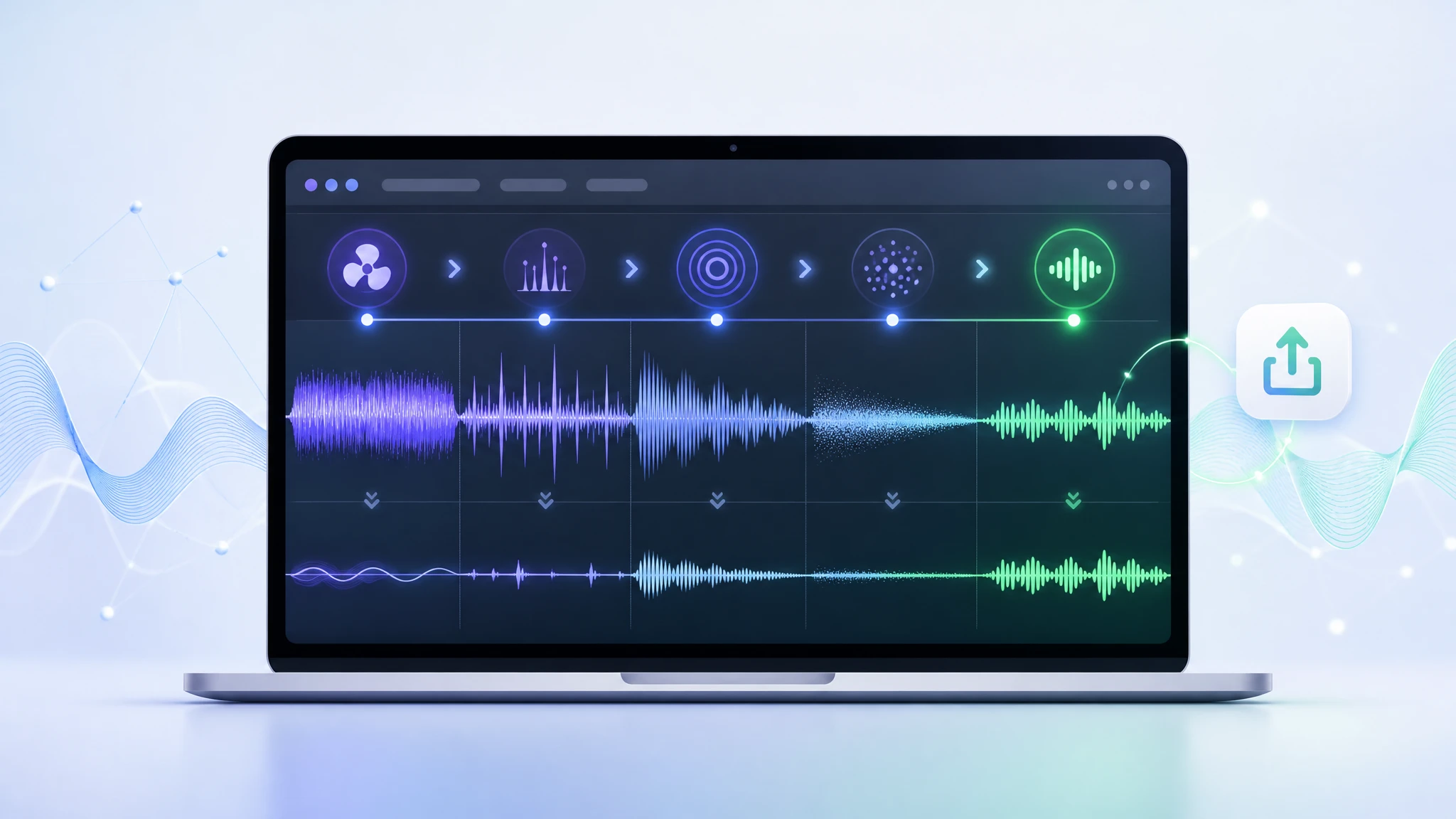
If your screen recording sounds noisy after export, do not run one strong noise-removal pass over the whole file. First identify the main problem: steady hum or hiss, room echo, keyboard clicks, clipped speech, or mixed microphone + system audio.
The safest repair order is: remove steady noise first, reduce echo lightly, lower only the worst clicks, then enhance speech last. For this post-export workflow, Audio Cleaner can handle the browser-based cleanup step. In this guide, Audio Cleaner and AI Audio Cleaner refer to the same tool.
If a click, cough, notification, or clipped word covers the sentence itself, re-record that sentence instead of pushing cleanup harder.
60-Second Diagnosis: What Went Wrong After Export
When the edit is already locked, the practical path is usually to clean the exported file instead of rebuilding the whole project. Audio Cleaner is useful in this situation because the goal is not to re-edit every visual cut, but to repair the finished audio track as cleanly as possible.
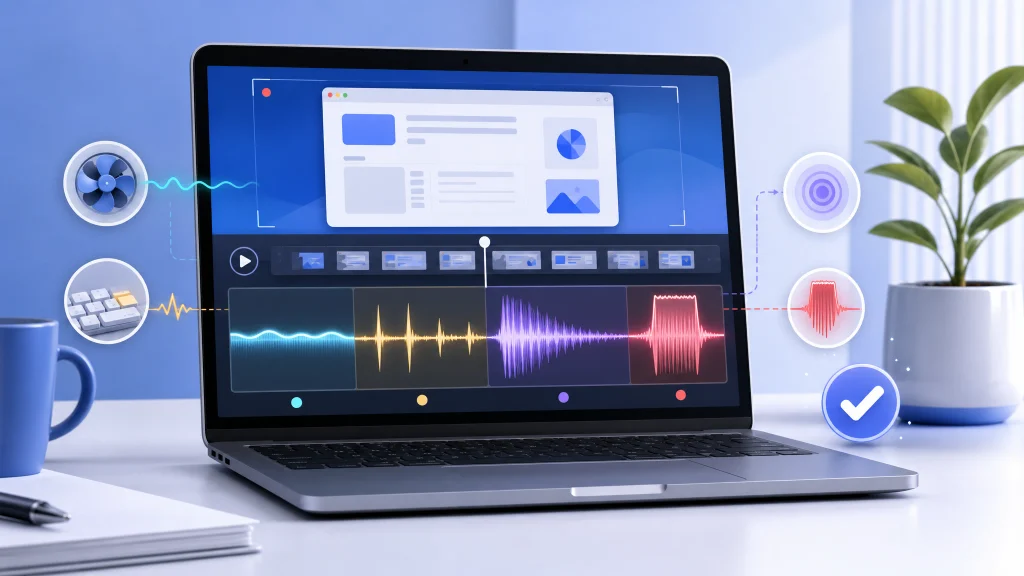
Use the table below before choosing a fix.
| What you hear in the export | Most likely issue | Best first move | Re-record if |
|---|---|---|---|
| Low fan sound or hiss under the whole video | Steady room or device noise | Reduce background noise before enhancing speech | The noise covers important words |
| Hollow, distant, or bathroom-like voice | Room echo or speaker bleed | Test light echo reduction on one section | Words blur together badly |
| Sharp clicks while typing or navigating | Keyboard and mouse transients | Lower isolated clicks and use mild cleanup | Clicks land on key words |
| Low buzz, charger hum, or electrical tone | Cable, USB, charger, fan, or power noise | Try targeted buzz or hum cleanup | The buzz distorts the voice itself |
| Thin, metallic, or watery narration | Over-processing or weak source audio | Restart from the original and use lighter settings | The original was already clipped |
| App sounds, music, or shared screen audio become worse | Mic and system audio are mixed together | Process the mic track separately if you have it | Speech and system audio are baked into one messy track |
What After-Export Cleanup Can and Cannot Repair
After-export cleanup is useful when the voice is still understandable and the noise is distracting rather than destructive.
Audio Cleaner can usually help improve:
- Fan hum from a laptop or desktop
- Air conditioner or room tone behind speech
- Low hiss from a headset mic
- Mild buzzing or electrical hum
- Light room echo
- Uneven narration that needs more clarity
It usually cannot fully repair:
- Clipped speech where the waveform is already distorted
- Keyboard clicks that land directly on top of words
- Loud notifications, coughs, desk hits, or sudden sounds over speech
- Severe room echo where consonants smear together
- Mixed music, app audio, and narration when they are all baked into one track
This is the main decision point. If the listener can understand every word, cleanup is worth trying. If the words are missing, covered, or distorted, a short re-record is often faster and more natural.
The Safest Repair Order: Hum First, Echo Second, Voice Last
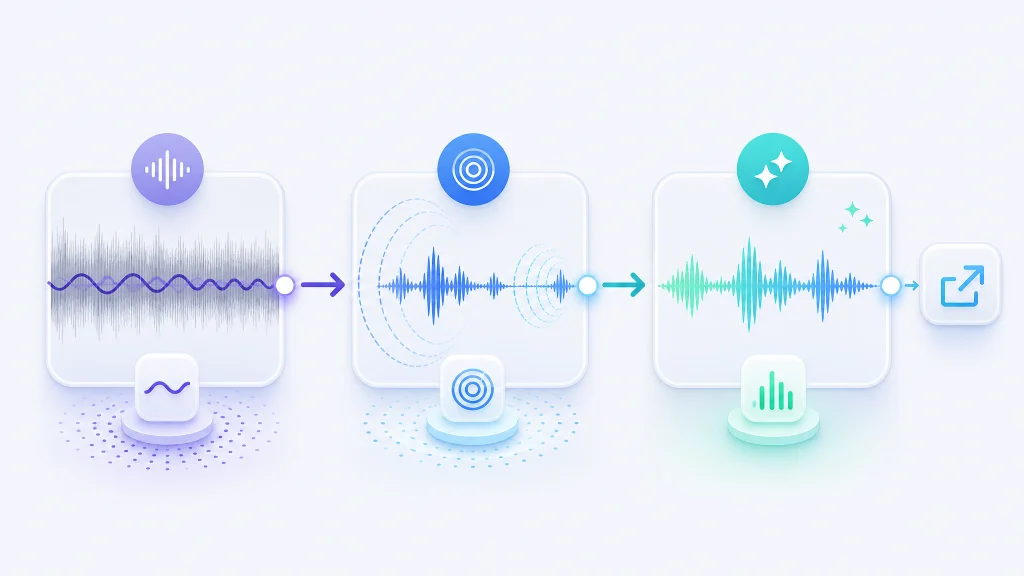
Order matters. If you enhance speech before removing steady noise, you may also make the noise louder.
Start with constant background noise. If the recording has fan sound, hiss, or broad room noise, use a workflow like remove background noise from audio and video before doing anything more aggressive.
If the export has a narrow electrical buzz or low-frequency hum, test remove buzzing from audio on a short section first. The goal is to reduce the tone without making the voice sound hollow.
Then handle echo. Echo reduction should be careful because room reflections are wrapped around the voice. If the narration sounds distant or hollow, test remove echo from audio on a representative minute and compare it with the original.
Use enhancement last. AI audio enhancer is best after the biggest noise problems are controlled, when the voice already sounds usable but needs more clarity, presence, or consistency. This is where AI Audio Cleaner fits best: after the obvious noise problems are reduced, not before.
How to Clean the Exported Recording Without Re-Editing the Whole Video
If the video edit is already finished, avoid touching the visual timeline unless you have to.
A practical workflow looks like this:
- Keep a copy of the original export.
- Export or extract the audio track if your editor allows it.
- Choose a 30- to 60-second section that represents the real problem.
- Clean that short section first and compare before and after.
- If it sounds natural, process the full audio file or full video export.
- Replace the audio track in your editor if you still have the project file.
- Export again and watch the final file once from start to finish.
Audio Cleaner is most useful when you want to keep the finished video edit intact and improve the sound without rebuilding the project. If you cannot separate the audio, clean the full video file with lighter settings. This is safer for product demos, tutorials, and webinar clips where system audio may be part of the recording.
Why Keyboard Clicks Still Survive While You Are Talking
Keyboard clicks are hard because they are short, sharp, and often overlap with speech.
A noise gate can help during silence because it lowers the mic when you are not speaking. But once you talk, the mic has to stay open. That is when clicks can pass through with the voice.
For exported tutorials, use this rule:
- Clicks in silent gaps: cut them or lower their volume manually.
- Clicks under unimportant words: soften them, but do not damage the voice.
- Clicks on key words: re-record the sentence if the phrase matters.
- Constant typing under a demo: keep a small amount if removal makes the narration unstable.
Viewers can tolerate a few quiet clicks. They are less forgiving when the speaker sounds robotic, underwater, or chopped up.
How to Avoid Damaging System Audio, Music, or App Sounds
Screen recordings are different from plain voice recordings because they may include microphone audio and system audio in the same file.
That matters for cleanup. A speech enhancer may improve narration but damage music, notification sounds, interface sounds, or another speaker’s voice. Strong denoise settings can also make app audio pulse or fade.
Use separate tracks when possible:
- Mic track: clean for speech clarity.
- System audio track: leave alone unless it has noise.
- Mixed export: use lighter cleanup and check every app-sound section.
If the recording is a software tutorial, do not judge the file only by the voice. Watch the parts where menu sounds, app playback, or demo audio matters.
Best Workflow by Recording Type
| Recording type | Most common export problem | Recommended repair path | Final quality check |
|---|---|---|---|
| Software tutorial | Keyboard clicks plus laptop fan | Remove steady noise, lower loud clicks, enhance lightly | Commands and explanations stay clear |
| Product demo | Echo, thin narration, system audio | Test echo reduction, preserve app sounds, enhance speech last | App audio does not pulse or fade |
| Online course lesson | Room echo and low mic volume | Reduce echo carefully, improve speech presence | Voice stays natural over long listening |
| Webinar replay | Different speakers and room noise | Clean lightly, avoid one-size-fits-all processing | Guest voices do not become metallic |
| Support or bug-report clip | Noisy office or keyboard typing | Prioritize speech intelligibility over polish | The problem and explanation are easy to follow |
| Social clip from a screen recording | Hiss, hum, and weak voice | Reduce noise, tighten pauses, enhance for clarity | The clip still sounds natural on a phone |
When to Re-Record One Sentence Instead of Processing the Whole File
A short re-record is often the cleanest repair.
Re-record the sentence when:
- The mic clipped on an important word.
- A click, cough, or notification covers the phrase.
- The speaker turned away and the word disappeared.
- Echo makes the sentence hard to understand even after a light test.
- Cleanup removes too much of the voice.
You do not need to re-record the full video. Record the sentence again in a quieter setup, match the speaking pace, then replace that small section.
QA Checklist Before You Upload the Final Version
Do one final check after cleanup. Most bad audio repairs fail because nobody listens to the exported version in normal conditions.
Check these points:
- The first 10 seconds do not sound harsh or over-processed.
- Quiet pauses still have a little natural room tone.
- The voice does not become metallic after noisy sections.
- Keyboard clicks are lower, not necessarily erased.
- System audio, music, or app sounds still behave normally.
- The file sounds acceptable on headphones, laptop speakers, and a phone.
- Captions or transcripts are easier to follow if you use them.
If the cleaned file sounds impressive for five seconds but tiring after two minutes, the settings are probably too strong. AI Audio Cleaner should make the recording easier to listen to, not make the speaker sound processed.
FAQ
Can I fix noisy screen recording audio after export?
Yes, if the speech is still understandable. After-export cleanup can reduce steady noise, fan hum, buzzing, hiss, mild echo, and some distracting clicks.
It cannot perfectly rebuild clipped speech or words covered by loud sounds.
Should I clean the video file or extract the audio first?
Extract the audio first if you still have an editor workflow that lets you replace it later. This gives you more control and keeps the visual edit untouched.
If you only have the final MP4 or MOV, clean the full exported file with moderate settings and check any system-audio sections carefully.
Why does my cleaned screen recording sound thin or robotic?
The cleanup was probably too aggressive, or the original recording had too much noise competing with the voice.
Start again from the original export, reduce steady noise first, and use lighter enhancement at the end.
Can online tools remove keyboard noise completely?
Sometimes, but not always. Clicks during silence are much easier to reduce than clicks that overlap with speech.
For clicks on important words, a short re-record usually sounds better than heavy processing.
Is it better to fix audio before recording next time?
Yes. A better mic position, quieter room, separate mic and system tracks, and lower fan noise will always help.
But if the recording is already finished, after-export cleanup with Audio Cleaner is still useful when the voice is clear enough to work with.
Final Takeaway
To fix noisy screen recording audio after export, do not treat every problem as background noise. Diagnose the sound first, remove steady hum or hiss, reduce echo carefully, handle clicks only where they matter, and enhance the voice last.
The best repair is the one that keeps the narration understandable and natural. Use AI Audio Cleaner when the recording is already finished and the words are still recoverable; re-record only the smallest section when the original audio is too damaged.
Sources and Further Reading
- TechSmith Support: Noise Removal Best Practices – Used for practical limits around steady background noise, fan hum, static, and short disruptive sounds.
- OBS Studio Knowledge Base: Noise Suppression Filter – Used for screen-recording context around live noise suppression, fan noise, and voice distortion risk.
- Zoom Support: Changing audio settings during a Zoom meeting – Used for meeting-recording context around built-in noise suppression, echo cancellation, and audio profile limits.
- Audio Cleaner and AI Audio Cleaner – Used for first-party cleanup workflow and tool-specific context.