
TL;DR
- Why: Tinniness in audio usually caused by buzzing environments, poor recording equipment microphones, audio processing issues or comression and file format issues, so we need some tools or methods to remove tinniness from audio.
- How: You can remove tinniness by improving the recording environment, adjusting equalizer (EQ) settings, choosing high-quality microphones or using filters and noise-removal tools.
- The best and free: AudioCleaner is the fastest and more effective solution which automatically detects and removes tinniness with one click, completely free to use.
Before learning how to remove tinniness from audio, it is important to understand what causes this issue. The factors bellow will help you identify the root of this issue.
What Causes Tinniness in Audio
Tinniness in audio is a common issue caused by factors that make your audio sound thin, metallic, or harsh and may be caused by the following factors.
- Buzzing or Electrical Interference from Surroundings: A noisy surrounding usually causes a buzzing sound in your audio. In addition, common sources include nearby electronic devices, faulty cables which also result in a low buzz that is noticeable, especially in quiet sections of your audio.
- Poor Recording Equipment Microphones: Tinniness often arises when cheap microphones capture too much of the higher frequencies sounds. Inexpensive or low quality microphones can exaggerate these sounds, resulting in tinniness.
- Audio Processing Issues: If your audio processing is boosts the treble too much(above 5 kHz), it can emphasize the higher-end frequencies that are typically associated with tinniness.
- Comression and File Format Issues: Audio compression, especially when saving audio in low-bitrate formats (like MP3 at 96 kbps), can lead to artifacts that degrade the sound quality, causing tinniness in your audio.
How to Identify Tinniness in Your Audio
Tinniness is an irritating sound in audio, you can identify it in these ways.
- Critical Listening: Training your ears to focus on specific frequency ranges. Tinniness primarily exists in the mid to upper frequencies.
- Using Visual Tool: Use a spectrum analyzer plugin in your Digital Audio Workstation (DAW). A tinny audio file will typically show a very weak or non-existent low-end.
- Uploading to AI Tools(Best way): Upload your audio files including tinniness to an AI tool like AudioCleaner, which can directly identify and remove tinniness from audio with just one click.
How to Remove Tinniness from Audio(Best AI Tool)
After identification, you definitely want to remove this tinniness from your audio. So here are some tips that can help you.
- Improving the Recording Environment: To minimize tinniness, record in a treated room with soft materials like foam to reduce echo.
- Adjusting Equalizer (EQ) Settings: To reduce tinniness, lower the treble and boost the midrange. Cutting harsh frequencies around 3-5 kHz can soften the tinny sound.
- Choose a High-Quality Microphone: A good microphone is essential for capturing clear, balanced sound. Opt for a dynamic or condenser mic with a flat frequency response for more natural, fuller recordings.
- Use of Noise Reduction and audio Filters: You can use tinniness reduction plugins or filters to remove tinniness from audio or remove mouth sounds. Tools like AudioCleaner can remove background noise from video or audio.
- AI Tools: AudioCleaner can automatically detect and remove tinniness from audio with a few clicks, which makes it your best free choice.
The following part will show you how to remove tinniness from audio by using this best free choice.
How to use the AudioCleaner to remove tinniness from audio
Step 1: Open your web browser and search for ‘audiocleaner.ai’ in your preferred search engine, like Google and then click the button ‘Get Started Online’.

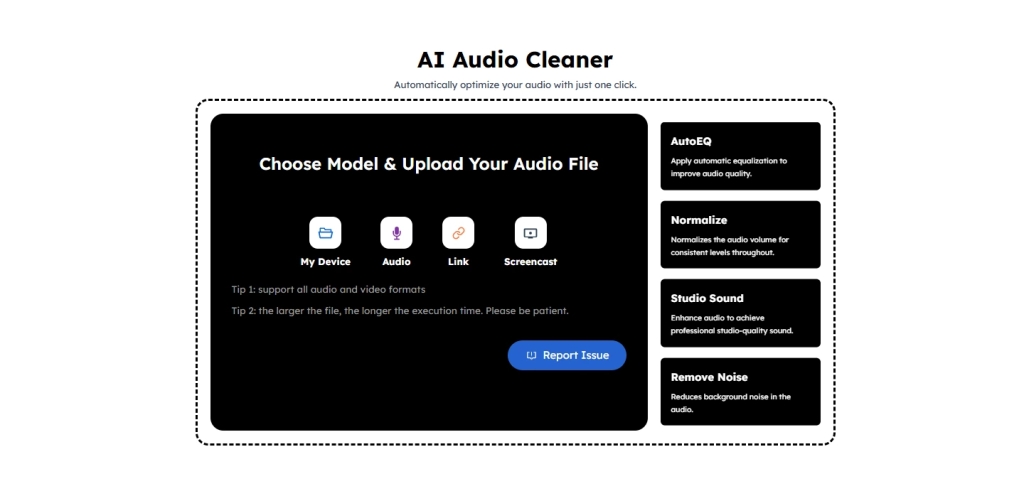
Step 2: Select the audio file that needs tinniness removal and upload it.
We support four types of uploading options, including My Device, Audio, Link, Screencast. More than this, our tool can verify MP3, M4A, WAV and all other audio and video formats, so there is no need for you to worry about the format issues.
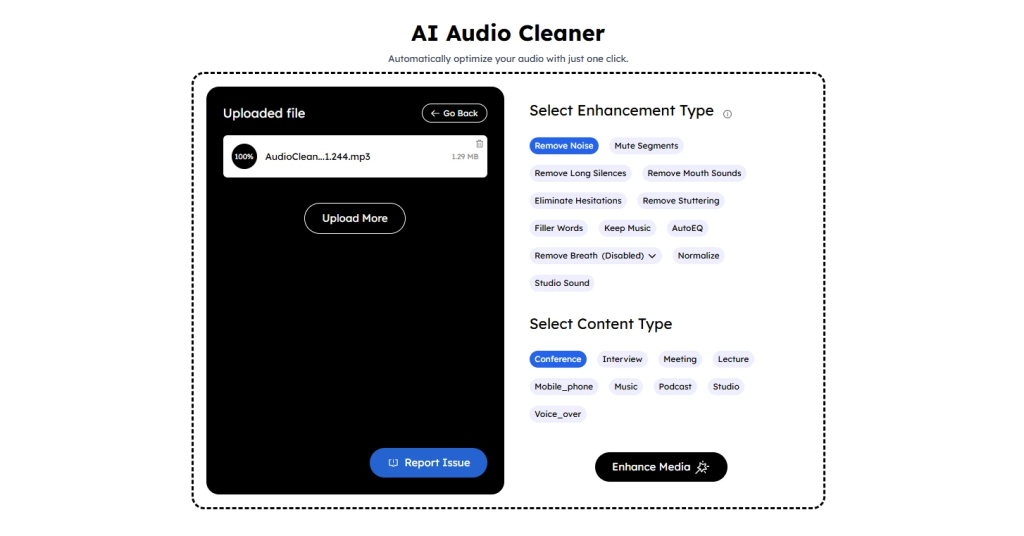
Step 3: Choose the enhancement and content type you wish to use.
After selecting the type you want, then our noise removal will automatically optimize and remove tinniness from audio with just one click on the “Enhance Media”.
Step 4: Preview your processing results and download your cleaned audio.
If you are satisfied with the AI processing results, download it or continue to use AI to optimize your uploaded files. If you are still not satisfied with the AI processing results, you can try manually enhancing the parameters for more precise tinniness removal.
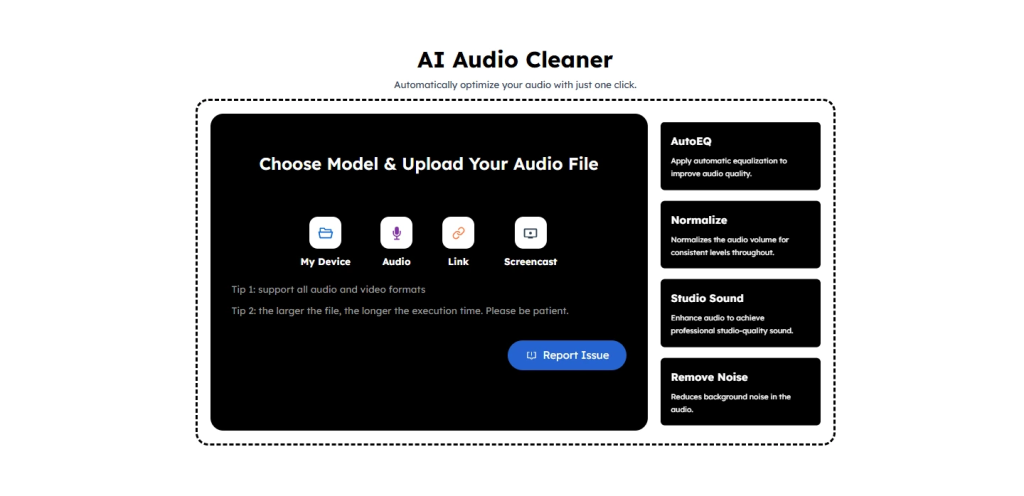
Step 5: During this process, if you encounter any problems that you cannot solve, you can click the “Report Issues” button at any time to inform us of the problem.
Why Choose AudioCleaner to Remove Tinniness from Audio
The advantages of our tool:
- Automated audio cleaner and enhancer free: AudioCleaner automatically identifies and removes tinniness, providing a free, best way to remove tinniness from audio.
- Beginner-friendly: With its simple navigating interface and good interaction, our remover is the best tool for beginners to remove tinniness from audio with no audio editing experience.
- Quick processing: The process of removing tinniness from your audio is quick, outputing professional results in just a few minutes.
- High-quality results: Our tool can ensures that your audio maintains its natural sound while removing tinniness from audio.
- Supports multiple file formats: No matter what the file format is (MP3, M4A, WAV and all other formats) , our noise remover can quickly verify and remove tinniness from audio with ease.
- Various audio enhancement options: Before removing tinniness from audio, our remover offers various enhancement and content types to choose.
Conlusion
Tinniness is a common problem that makes audio sound unpleasant and it is caused by many sources, such as buzzing recording environments. Manual adjustments take time and require professional knowledge. That is why AudioCleaner is the most efficient and beginner-friendly options. With automated identification, it helps you remove tinniness from audio instantly. Try uploading your file to AudioCleaner and experience it if you are struggling with tinniness. Clearer and more professional-souding audio is just one click away!
FAQs on How to Remove Tinniness from Audio
How to reduce or eliminate the “tinny” sound from microphones for video recordings?
By improving the recording environment, adjusting equalizer (EQ) settings, choosing high-quality microphones or using filters and noise-removal tools, you can reduce or eliminate tinniness. While using AudioCleaner is the best, free, efficient, beginner-friendly way for you to remove tinniness from audio.
How to fix tinny audio in AudioCleaner?
That is a good question. You just need to upload your audio file, choose the type you want and then download.
How to remove tinniness from audio?
You don’t need to worry about this at all. Our tool has an AI-powered automated system which could remove tinniness from audio and you just need to upload your audio with one click.
What else can AudioCleaner do apart from removing tinniness from audio?
Our tool can handle much more than removing tinniness. It can extract vocals, enhance speech and remove background noise from video files. For example, if you recorded a Taylor Swift concert and the audio is filled with noise, AudioCleaner can make your recording much clearer.